When an audio file will not open in a browser, start with the source rather than repeatedly changing export settings. Check that you have a complete recording, distinguish its name from the encoded content, and compare it with a short known-good file. A browser converter can make an MP3 or WAV only after it can decode the input. This guide gives you five checks and an original example of why renaming a file does not convert it.
Keep the original. Confirm that the file is complete and readable, then make the next copy in an application that can decode it. A different extension cannot supply missing audio or a missing decoder.
1. Check that you have the actual, complete audio file
Keep the original and work on a copy. Confirm that a cloud or messaging download has finished and that the local file is more than an empty placeholder. Compare its size with the sender’s copy when possible. A zero-byte file contains no audio to decode; a failed transfer needs a fresh download, not a new extension.
Also distinguish an editing project from an exported recording. An Audacity .aup3 project belongs in Audacity; it is not a WAV with an unusual name. Audacity’s official file FAQ explains that sharing audio with other applications requires an audio export. Reopen the project in its originating app and export a separate copy.
Try that copy in the app that made it. If it cannot open there either, ask for a new export or restore a known-good source. If another player opens it, note that result: it narrows the problem, but does not prove that a browser editor supports the same encoding.
2. Separate the filename from the format inside
A filename extension is a label. A container organises the file’s media and metadata; a codec describes how its audio is encoded. For example, an M4A file commonly contains AAC or Apple Lossless audio. MDN’s container guide explains why support for a container does not establish support for every codec inside it. WAV also has encoding variants: “WAV” alone does not mean every file is the same kind of PCM.
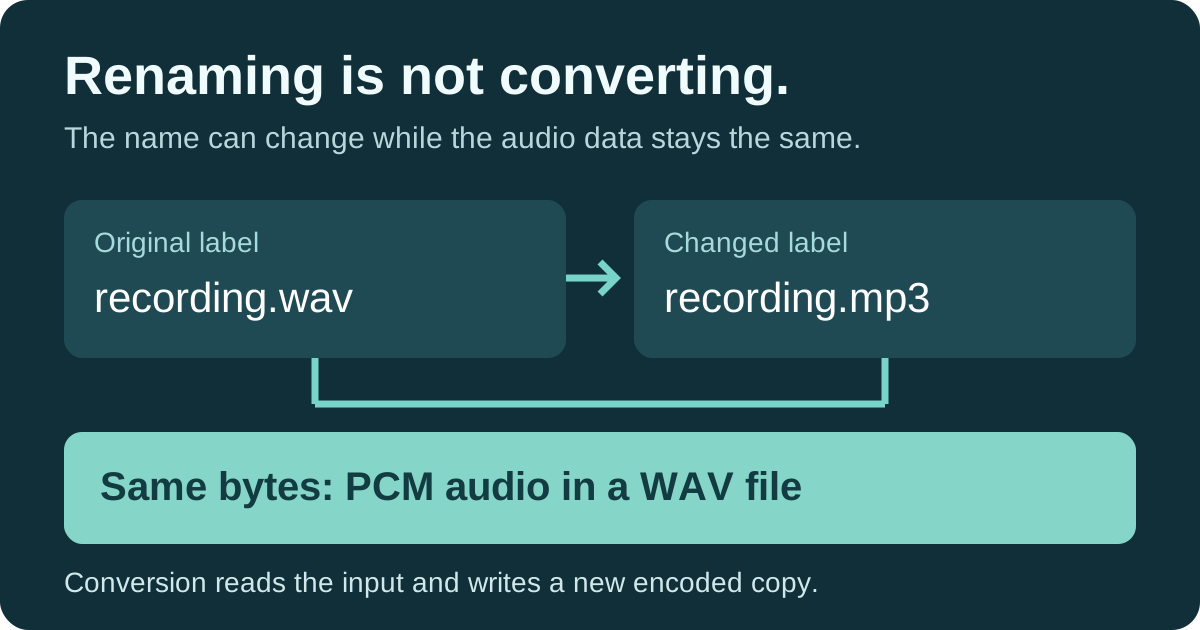
Renaming is not conversion. Changing recording.m4a to recording.mp3 leaves the encoded content unchanged. It can make the file harder to identify or cause an application to reject it. Restore a misleading name on your working copy, then use an application that can actually read the source to make the required export.
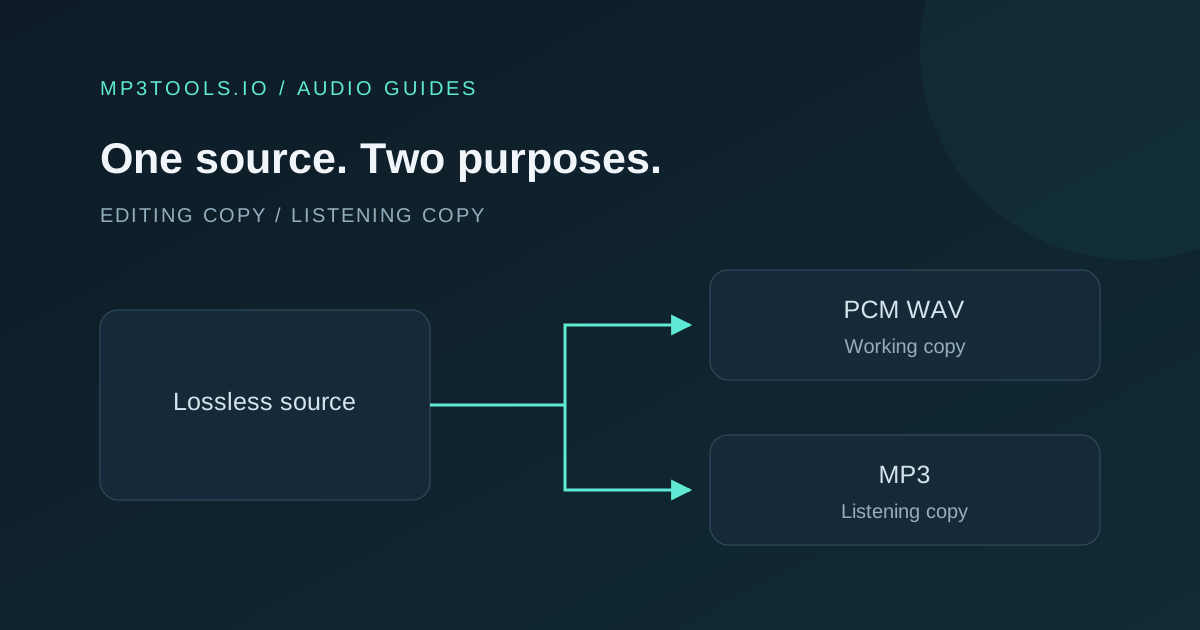
If someone is sending you a replacement, ask for the export format and encoding, not just a filename ending. A separate 16-bit PCM WAV is a useful starting point for further editing; an MP3 can serve as a smaller listening copy. Neither choice restores detail already lost in the source.
3. Check this browser and the size of the job
Support can vary with the browser, operating system and encoding. MDN’s audio codec guide describes that variability. Avoid treating a list of accepted extensions as a promise that every file with those names will decode.
A browser editor also needs audio it can work with after opening it. mp3tools.io’s converter uses Web Audio decoding; the documented method requires complete file data and may resample it to the audio context’s rate. A website’s streaming player successfully playing a recording is therefore not a complete test of an editor’s import path.
Try a short recording you made yourself in the same tool. If it works, compare that result with the problem file. Trying another current browser can reveal a compatibility difference, but it cannot repair missing data. Check the tool’s displayed size guidance, too. Compressed file size is not the whole memory cost: decoding creates a larger working buffer. For a long recording, make a shorter export in the source application and try that.
4. Use a controlled example instead of guessing
We checked the live Audio Converter in Chromium with an original two-second, mono, 48 kHz, 16-bit PCM WAV containing a generated tone. These are diagnostic fixtures, not customer recordings or a survey of browser support.
| Input | Observed result | What it establishes |
|---|---|---|
Complete original.wav | Decoded and exported a two-second PCM WAV. | A known-good small source worked in this browser. |
The same bytes named renamed.mp3 | Decoded; its WAV export matched the first export. | The new name did not turn the source into MP3. |
Non-audio test bytes named invalid.wav | Decode error; export disabled and the previous download cleared. | A plausible extension cannot make invalid content readable. |
Loading the valid source again restored the export workflow. These observations do not establish that every renamed or damaged file behaves the same way. Some applications use filename checks, and different damaged files fail differently. The useful comparison is between a known-good source and the file you are investigating.
5. Make and check the next copy
Open Audio Converter and choose Upload audio to convert. Wait for the file-ready message. Once decoding succeeds, preview the recording, select WAV or MP3 under Format, then choose Export WAV or Export MP3 and the matching download button. MP3 additionally offers a bitrate choice; the tool does not export M4A, AAC, FLAC or Ogg.
The converter cannot convert a file it cannot decode. If the decode error remains, return to an application that opens the source and export a compatible copy there. Do not keep changing the browser export settings: they cannot fix an import that never completed.
- Check the downloaded filename and extension, then open the actual download.
- Check duration, beginning, ending and channel content; listen through important edits.
- Keep the original source and label the new copy clearly. Existing tags are not preserved by this conversion.
- If asking for help, record the browser and OS version, source application, export encoding, duration, size and exact error. Share a short permitted example only when appropriate.
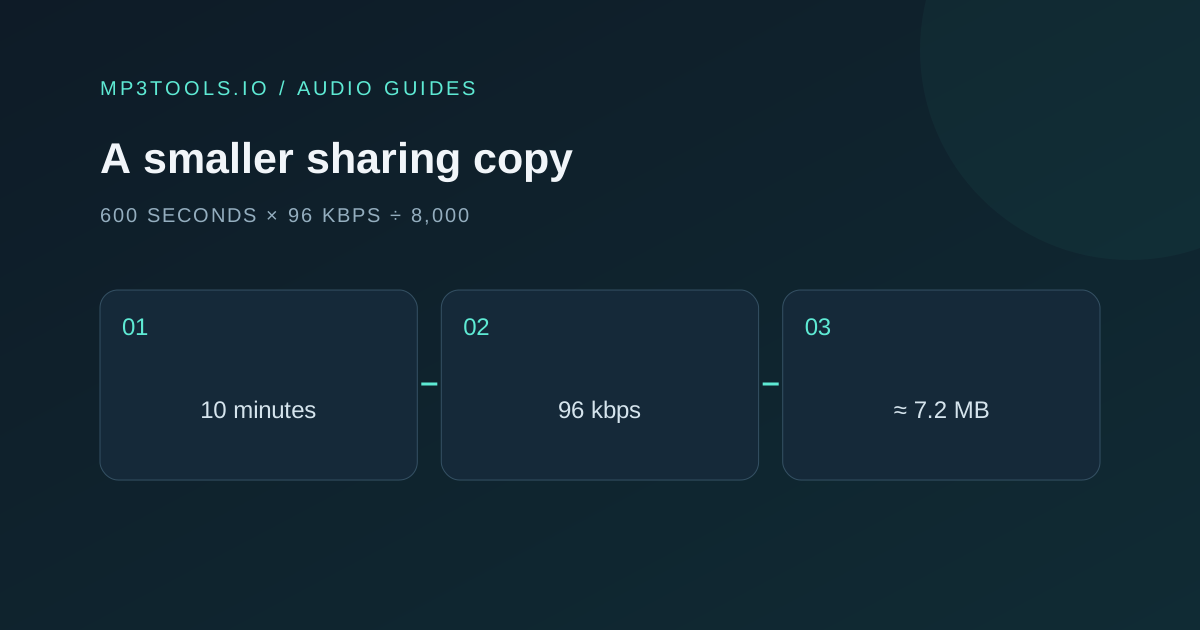
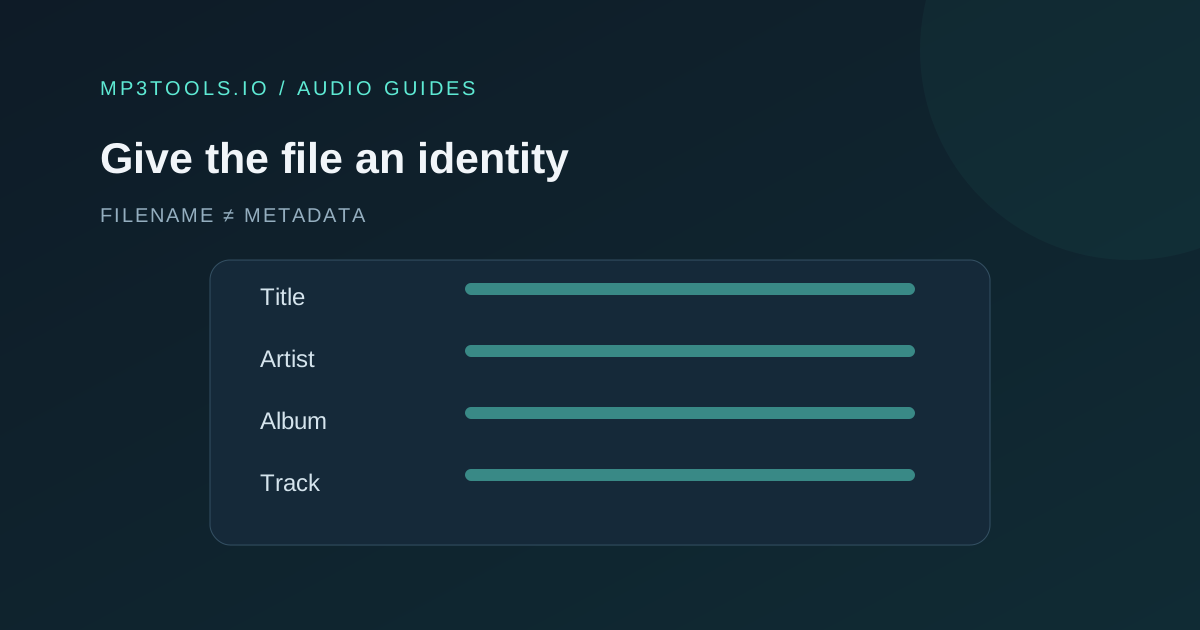
Use the MP3 versus WAV guide to choose a working or listening copy, the file-size guide for a sharing limit, and the metadata guide when a readable file only has the wrong title or artist.
Sources & further reading
- MDN: media containers and actual encoding ↗
- MDN: complete-file Web Audio decoding ↗
- MDN: audio codecs and support variability ↗
- Audacity: project files and audio exports ↗
Tool steps checked against the current mp3tools.io browser tools. Platform guidance checked on 28 October 2026.