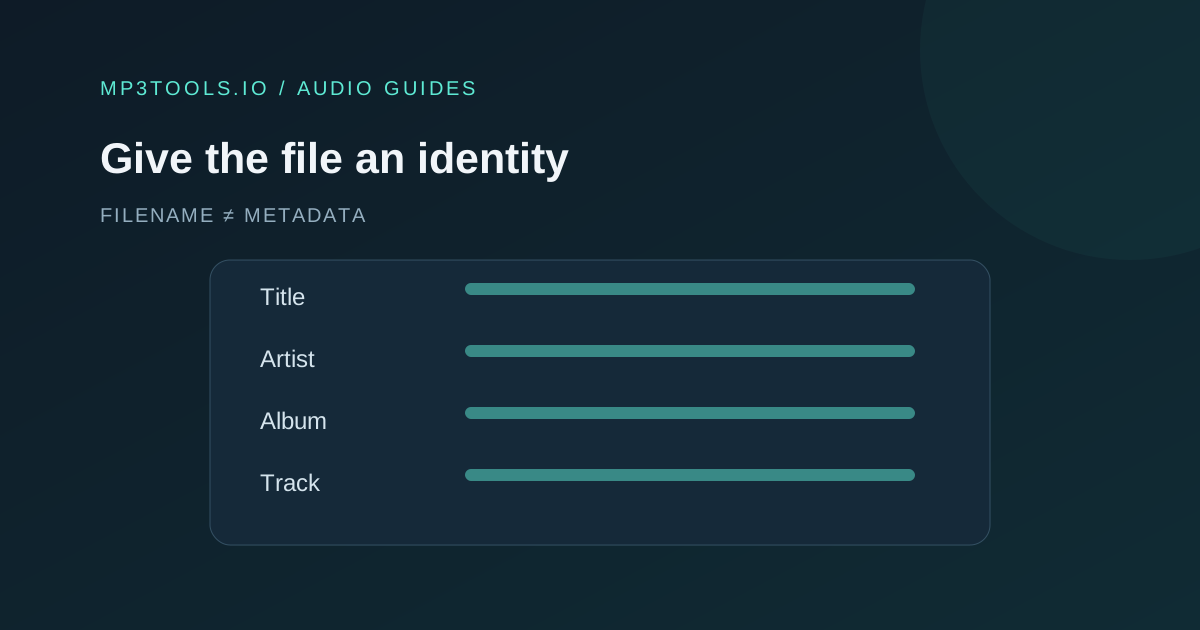
A file named “final-demo-3.mp3” can still appear as “Unknown Artist” in a player. The filename and the metadata inside the MP3 are separate. Editing the text tags helps listening copies show useful details when they move between folders, devices and collaborators.
Finish audio edits first, tag the final MP3, then reopen the downloaded copy in a player to verify what it displays.
Decide what each field should mean
| Field | Useful entry |
|---|---|
| Title | The track or recording name, including an intentional version label |
| Artist | The performer or creator name used consistently |
| Album | The release or collection this copy belongs to |
| Track | Its position in that collection, if applicable |
| Year | The intended year for this tagged copy |
| Genre | A helpful category rather than a list of promotional claims |
| Comments | Brief context the recipient can use |
For a private demo, a version label such as “Demo” or “Instrumental Preview” can prevent confusion. Keep those words out of a final release title unless they are actually part of the approved title. Check spelling and capitalisation against your reference rather than retyping from memory.
Do not fill every field merely because it exists. A short voice note may need a title and creator but no album or track number. Useful metadata makes a file easier to understand.
Read and edit the MP3 locally
- Open the ID3 Tag Editor and choose an MP3 file.
- Read the values that appear before changing them.
- Set the supported title, artist, album, track, year, genre and comment fields.
- Export the tagged MP3 and download the new copy.
- Keep the original until you have verified the output.
The editor reads and rebuilds the file locally in your browser. It writes supported text metadata and comments while preserving the original MP3 audio bytes, so this operation does not re-encode the sound.
It is not a full library-management tool or an artwork editor. Keep the original when it contains specialised tags or embedded images you rely on, and check those fields in your destination application. Do not assume that every uncommon frame has been retained exactly as you expect.
Tag after the final audio edit
Trimming, boosting, merging or converting audio usually creates a fresh export. That export may not carry all source metadata. If you tag first and then perform another audio edit, you can end up delivering an untagged copy despite doing the tagging work.
Use this order: finish the audio, create the final MP3 listening copy, edit its tags, then verify the downloaded file. For a collection, use the same artist and album spelling across every track. Check numbering in the intended playback order.
Our release checklist connects the tags with artwork and lyrics. Consistency matters more than adding extra descriptive fields, especially when several people are preparing the same release.
Verify in the player that matters
Open the downloaded tagged file in the application your recipient is likely to use. Check the title, artist, album and track position. Also play a short passage to confirm you tagged the correct recording rather than a similarly named version.
Some players cache library details. If you still see old values, import the downloaded copy as a new item or refresh the library according to that player’s normal workflow. Use the actual downloaded file for the check; seeing the values in the editor only confirms what you entered.
- Does the title describe the correct version?
- Are artist and album spelling consistent?
- Is the track number useful and correct?
- Does the filename still make sense outside a music library?
A good tagged copy should be understandable even after it leaves your carefully organised release folder. That is the real test of whether the metadata is doing its job.
Sources & further reading
Tool steps checked against the current mp3tools.io browser tools. Platform guidance checked on 4 October 2026.