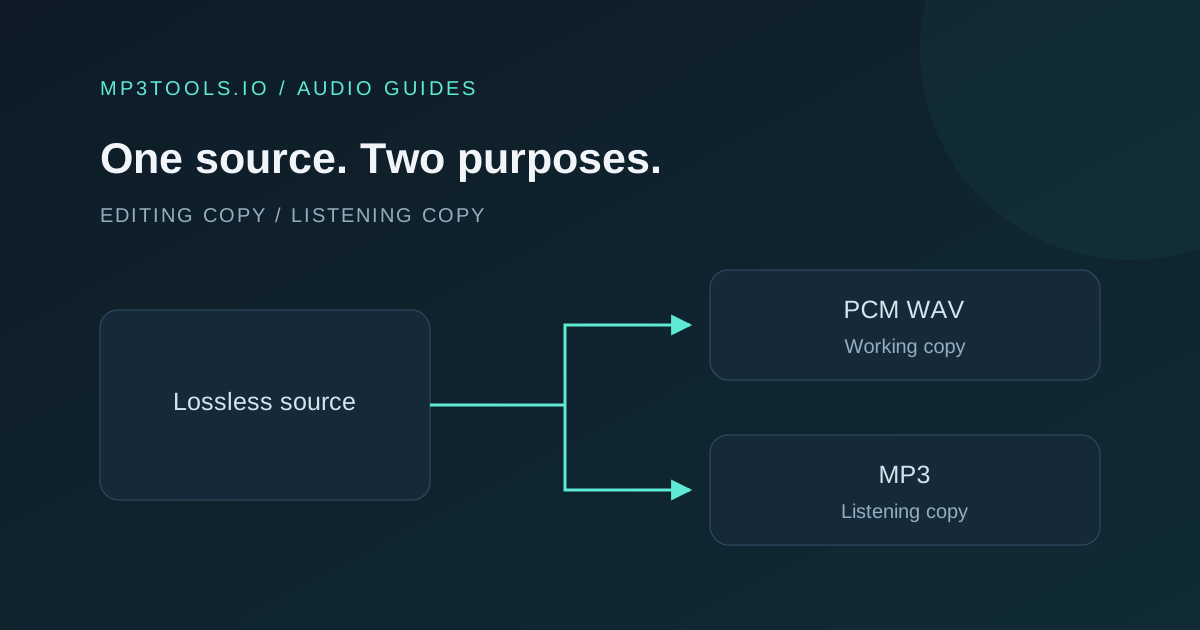
MP3 and WAV can contain the same song, but they solve different storage and delivery problems. For a quick listening copy, a compact MP3 is convenient. For an editing handover, an uncompressed PCM WAV is often more useful. The important decision is what the next person or application needs to do with the file.
Keep a high-quality source, use PCM WAV for editing handovers, and make MP3 listening copies when a smaller download matters.
What the file actually contains
MP3 uses lossy encoding: the encoder reduces the amount of audio information it stores to make a smaller file. The resulting file can sound good, but some information from the source is no longer present.
WAV is a container rather than one compression method. In everyday production, “a WAV” usually means PCM audio, which stores samples without a lossy codec. Other kinds of data can exist in a WAV container, so check a destination’s exact format requirements instead of relying on the extension alone. The MDN audio codec guide describes the distinction between codecs and containers.
The WAV exports in mp3tools.io use 16-bit PCM. They are useful working copies, but they are not a substitute for a higher-resolution original when a delivery brief asks for a particular bit depth.
Choose for the next step
| What happens next? | Useful choice | Reason |
|---|---|---|
| Someone listens to feedback | MP3 | Smaller download and broad playback support |
| Someone edits the clip again | PCM WAV | Avoids another lossy intermediate |
| You keep an approved master | The original lossless master | Preserves your best available source |
| A distributor asks for audio | Its specified format | Delivery requirements take priority |
Do not send a large WAV just because it sounds more professional in the filename. If a collaborator only needs to approve an arrangement, an MP3 may make the exchange easier. Label it as a preview and retain the master for the actual handover.
Likewise, do not replace the archive with a small MP3 to save space. You can always make another listening copy from a good source. You cannot rebuild the discarded source detail from that listening copy.
Why the sizes differ so much
For uncompressed PCM, size depends on duration, sample rate, bit depth and channel count. A minute of 44.1 kHz, 16-bit stereo PCM is approximately 10.58 MB before small container overhead. That is calculated as 44,100 samples per second × 16 bits × 2 channels × 60 seconds ÷ 8.
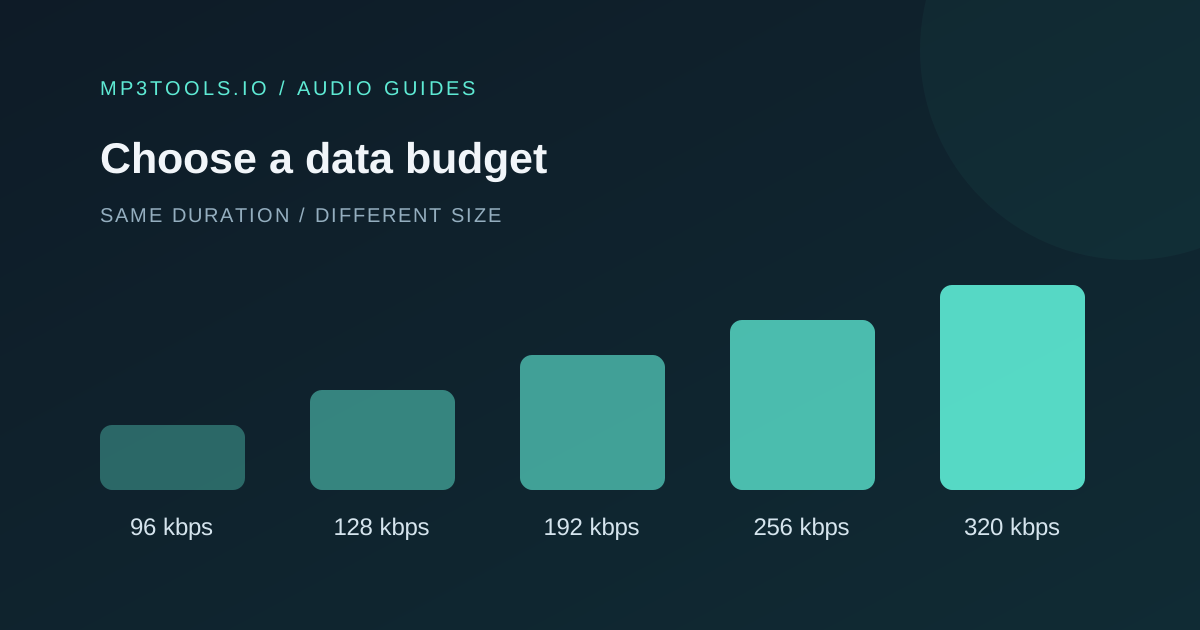
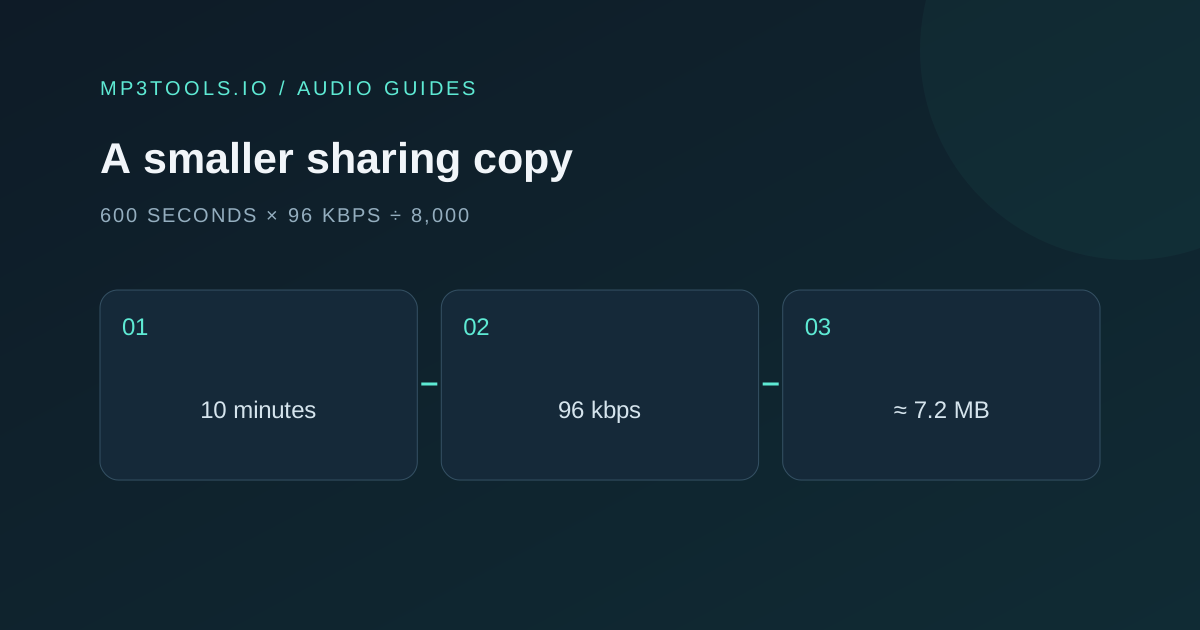
A constant-bitrate 192 kbps MP3 uses about 1.44 MB for a minute, before metadata and small encoding overhead. These figures are decimal megabytes; a computer displaying binary units may show a different number. They are calculations, not a guarantee that every export will match exactly.
Our file size guide shows how to work backwards from a sharing limit. Choose the size you need, then listen to the export rather than judging it only by its properties.
Conversion changes the container, not the past
Converting an MP3 to WAV creates a PCM representation of the decoded MP3. It can be useful when an editor needs WAV input, but it does not recover detail removed during the original MP3 encoding. A larger output is not evidence of an improved source.
Increasing MP3 bitrate on an existing low-bitrate recording also does not restore what has already been lost. Start from the original recording or master when you can. If the MP3 is your only source, keep it safe and make the fewest necessary editing and export stages.
Changing a filename from .mp3 to .wav is not conversion. An application needs to decode the source and write the desired output format.
Use the browser converter with a clear purpose
- Open the Audio Converter and choose a source that your browser can decode.
- Select MP3 or WAV in the format control.
- For MP3, select a bitrate and export.
- Download the result, play it, and confirm its purpose in the filename.
The current tool exports MP3 and WAV. It does not export every format listed as a possible input, and input decoding support varies by device. For unusual codecs, multichannel delivery or a specific professional bit-depth requirement, use a workflow that supports those exact settings.
Keep a simple two-copy habit: one protected source and one version for the next task. It makes later edits easier, prevents accidental quality downgrades, and tells collaborators which file they should actually use.
Watch & learn
How Digital Audio Works — Computerphile
For more background on the samples behind a digital recording, this educational video introduces how digital audio works. It adds theory to the format decisions above.
Loading the player connects to YouTube. Watch on YouTube instead ↗
Sources & further reading
Tool steps checked against the current mp3tools.io browser tools. Platform guidance checked on 4 October 2026.