When an audio attachment is too large, start with the sharing limit and the recording’s purpose. A ten-minute spoken update and a music demo do not need the same settings. You can often make a useful smaller copy by removing unwanted time and choosing a lower MP3 bitrate, without changing your protected original.
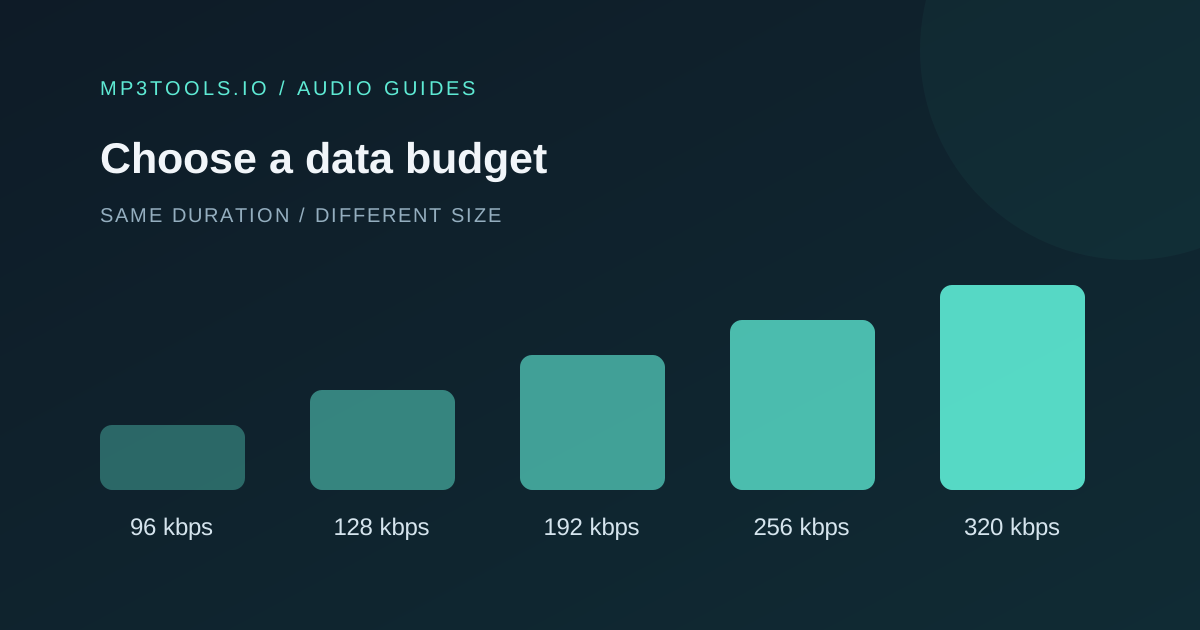
Duration and MP3 bitrate are the main size controls. Make one smaller copy from the best source and listen before sharing.
Turn the limit into a bitrate budget
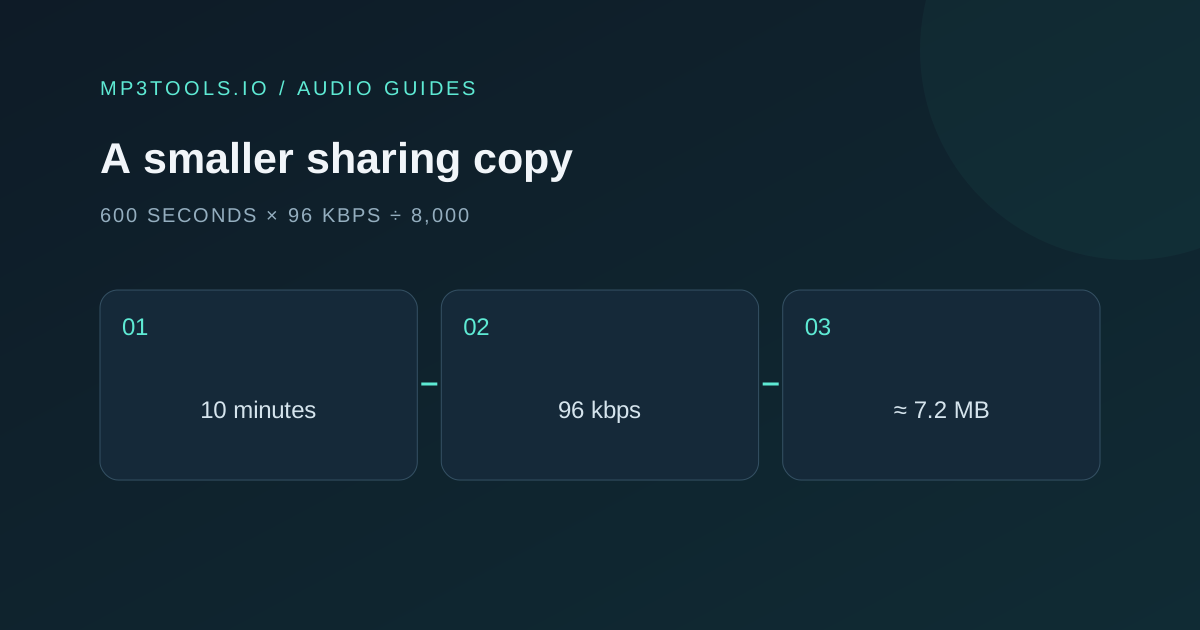
For a constant-bitrate MP3, a useful estimate is size in MB ≈ seconds × kbps ÷ 8,000. This uses decimal megabytes and does not include tags, artwork or small encoding overhead. Allow room below the attachment limit rather than targeting it exactly.
For example, a ten-minute clip at 128 kbps is roughly 9.6 MB. At 96 kbps it is roughly 7.2 MB. If the service limit is 8 MB, the smaller option gives you some margin. If it is 5 MB, shortening the clip or sharing a link may be a better decision than pushing speech into an unsuitable setting.
Check whether the service applies the limit per file or to the whole message. A cover image and other attachments can consume the same budget. If the recipient needs the full-quality file, send the original through a suitable file-sharing route instead of compressing it to fit email.
Remove time you do not need
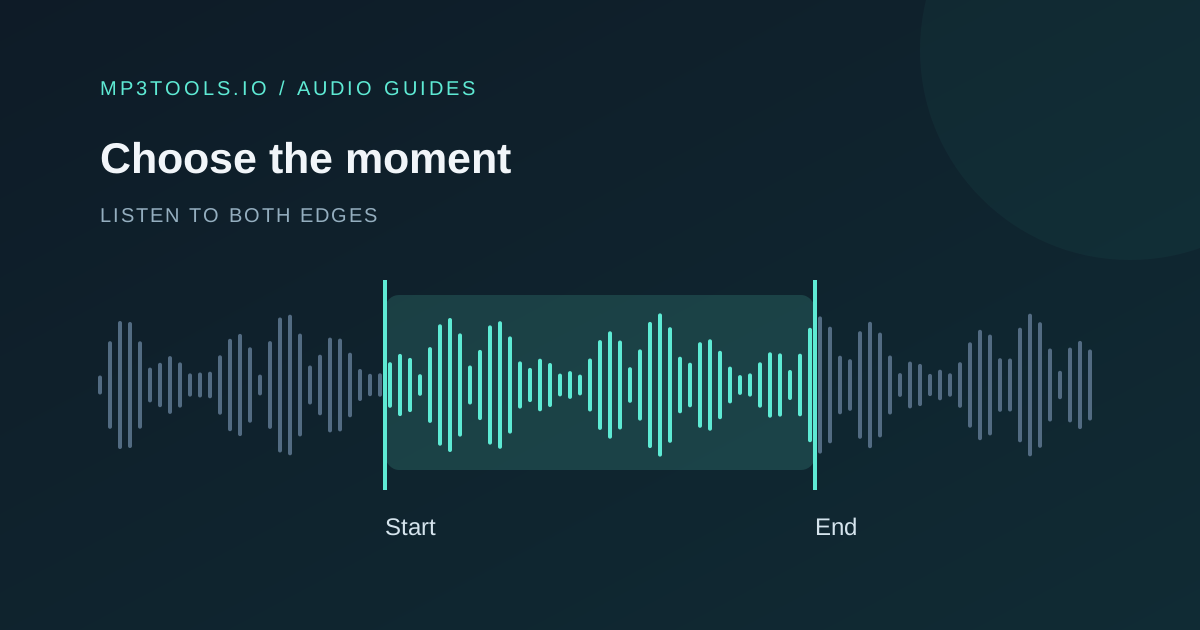
Silence, a repeated take or a long setup can cost more space than a small change in export settings. Use the MP3 Cutter to make a complete, purposeful excerpt when the recipient only needs a specific answer or passage.
Do not remove context merely to reach a target. A shorter interview clip still needs a complete thought, and a music demo needs enough time to demonstrate the arrangement. If the whole recording matters, retain its duration and consider another delivery method.
For several clips, decide whether the recipient benefits from one combined file or separate files with descriptive names. Combining them does not automatically reduce the total amount of audio. It may make review easier, but the size is still governed by duration and export bitrate.
Choose settings in the Audio Compressor
- Open the Audio Compressor and choose your source.
- Choose MP3 output and a bitrate suitable for the material.
- Keep the source sample rate initially; change one variable at a time.
- Use mono only when stereo information is unnecessary.
- Export, download and check the actual size.
This tool reduces file size through encoding settings. It is different from a dynamic range compressor, which changes the relationship between loud and quiet sounds. Lowering bitrate does not make quiet words louder.
At a fixed MP3 bitrate, changing stereo to mono does not automatically halve file size: the bitrate is the total budget for the stream. Mono can make that budget more suitable for a single voice, or allow a lower bitrate to be acceptable. Listen for missing material before discarding a stereo channel layout.
Listen for the cost of the smaller copy
Check consonants, breath sounds, cymbals, room ambience and the busiest passage. Listen at the same playback level when comparing the source and export. If you hear a watery texture, softened detail or distracting roughness, try a higher bitrate before changing other settings.
For a voice memo, speech clarity matters more than preserving a stereo room image. For music, the space between instruments may matter, so a setting that works for one speaker may be a poor choice for a mix. Our bitrate guide gives several starting points, with listening as the deciding check.
The Audacity export guide also treats format and quality as destination-dependent choices. Use the recipient’s requirements when they have supplied them.
Keep the original and label the delivery copy
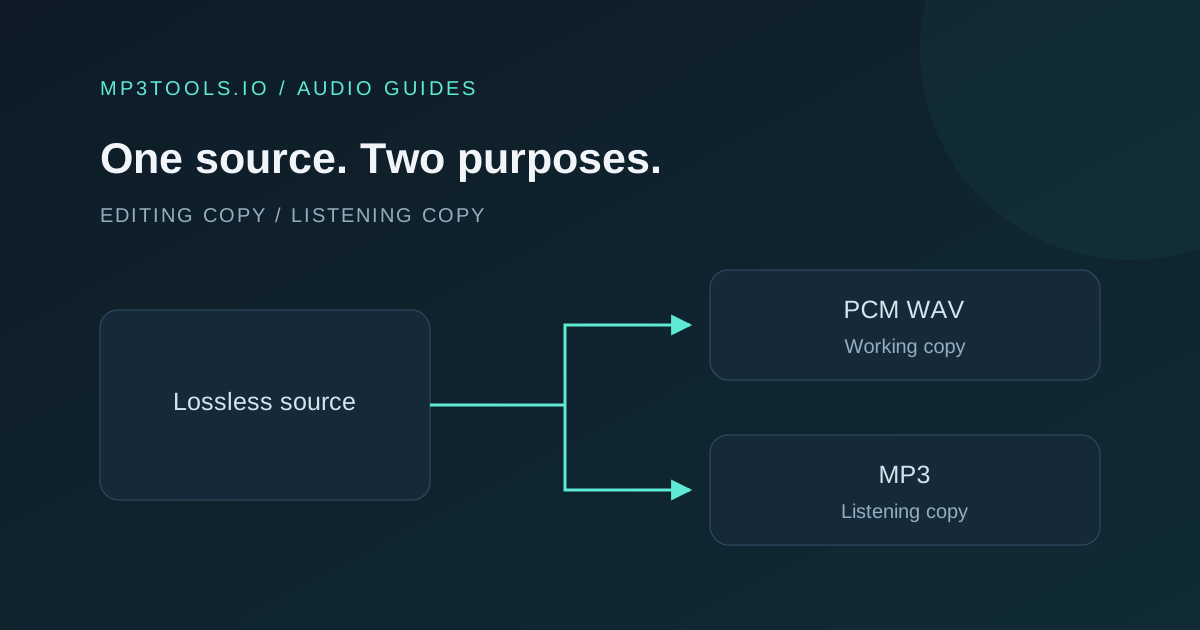
Use a clear filename such as session-preview-96kbps.mp3. Keep the unmodified source in a separate folder. If the recipient later asks for better quality, make a new export from that source rather than increasing the bitrate of the reduced copy.
- Confirm that the actual download fits the limit with room to spare.
- Play its beginning, end and a demanding passage.
- Check that it contains the intended version and duration.
- Send a full-quality link instead when the compromise is too large.
A smaller attachment is successful when the recipient can use it. If the export is difficult to understand or unsuitable for further editing, it has solved the wrong problem. Keep file size, listening quality and purpose together in the final decision.
Watch & learn
Digital Audio Compression — Computerphile
This educational explanation adds context to why audio encoding can reduce the amount of data needed for listening. Use it alongside the practical size calculations in this guide.
Loading the player connects to YouTube. Watch on YouTube instead ↗
Sources & further reading
Tool steps checked against the current mp3tools.io browser tools. Platform guidance checked on 4 October 2026.