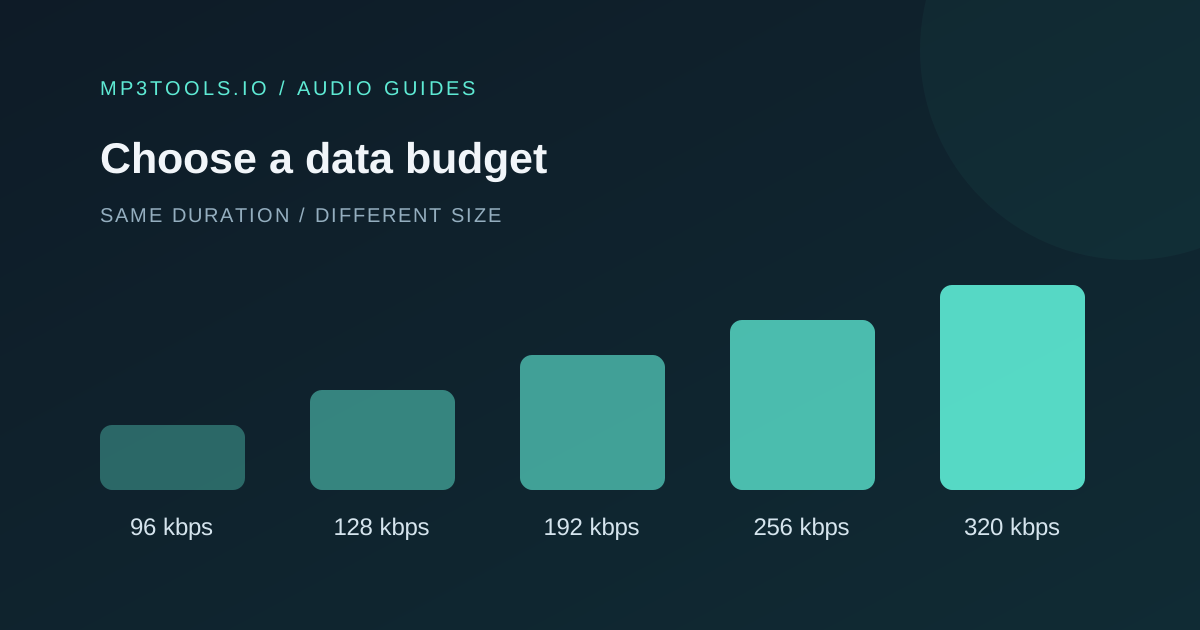
MP3 bitrate is a data budget, expressed in kilobits per second. A larger budget generally gives the encoder more room to represent the sound, while a smaller one makes the download lighter. There is no single setting that serves every recording, destination and listener equally well.
Choose a starting point for your material, export a representative passage, and raise the bitrate if you hear distracting artifacts.
Keep bitrate separate from sample rate
Bitrate, such as 192 kbps, describes how much encoded data is stored per second. Sample rate, such as 44.1 kHz, describes how many audio samples occur per second. Bit depth describes how each PCM sample is represented. They are related to the file, but changing one is not the same as changing the others.
If your recording already has a suitable sample rate, keep it initially. Changing several settings at once makes it harder to understand why a smaller export sounds different. The Audacity glossary defines these terms if you want more background.
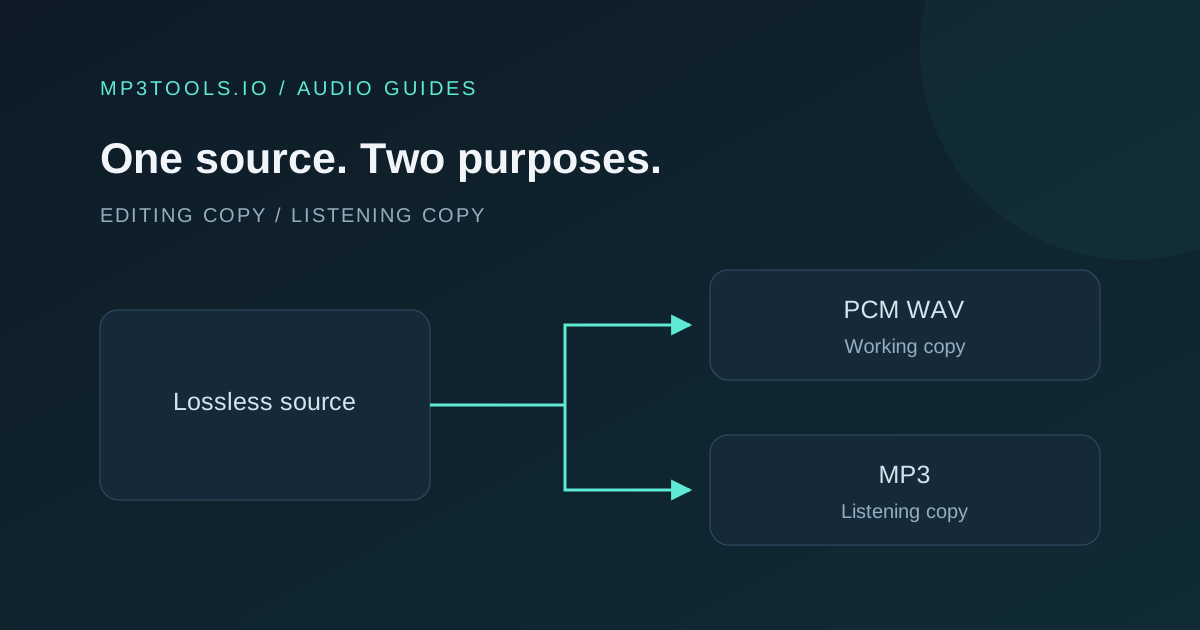
Increasing an existing MP3’s bitrate does not restore information lost when it was first encoded. The best starting point is the original recording or a lossless master. When that is unavailable, preserve the MP3 source and avoid repeated intermediate exports.
Use these settings as starting points
| Bitrate | Try it for | Size per minute* |
|---|---|---|
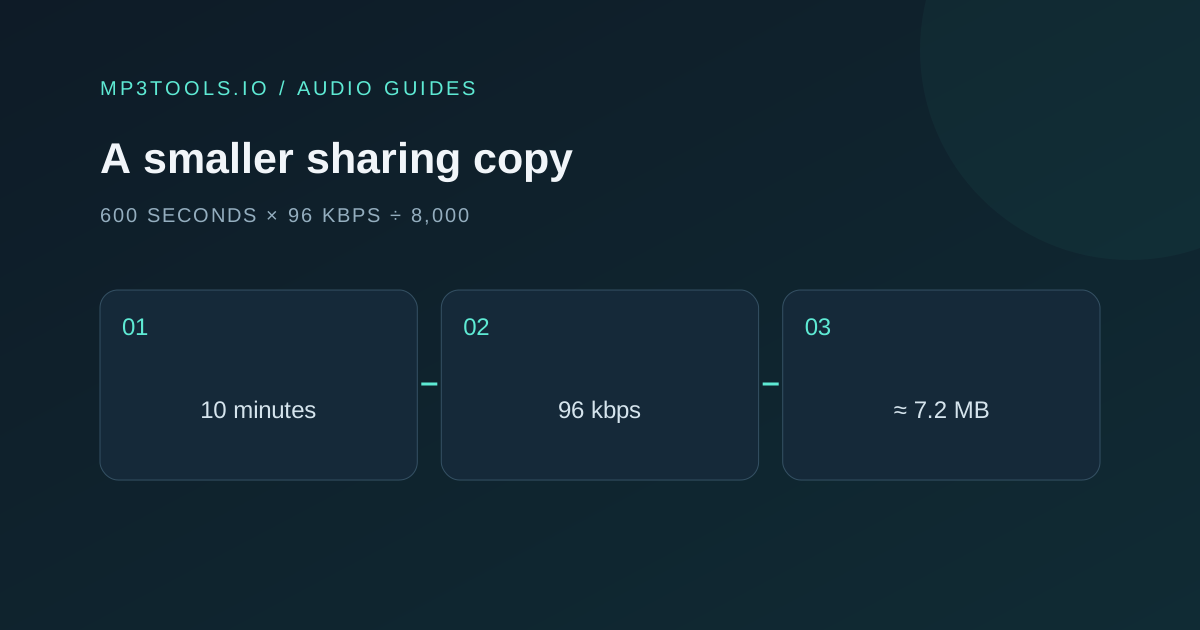
| 96 kbps | Compact single-voice sharing copies | 0.72 MB |
| 128 kbps | General speech or a lightweight preview | 0.96 MB |
| 192 kbps | A music preview with a moderate size budget | 1.44 MB |
| 256 kbps | A higher-budget music listening copy | 1.92 MB |
| 320 kbps | The largest MP3 option in these tools | 2.40 MB |
*Calculated for constant bitrate, using decimal MB, before metadata and small encoding overhead. These are file-size estimates. Quality depends on the source, the encoder, the channel layout and the sounds being encoded.
For a busy stereo mix, start higher than you would for an isolated voice. For a long spoken recording sent through a tight attachment limit, test a smaller setting first. If a podcast host or client gives an explicit specification, follow that rather than this general table.
Build a small comparison you can actually judge
Select a passage that includes the difficult material: quick consonants for speech, cymbals and reverb for music, or overlapping voices for an interview. Include a quiet moment as well as a busy one. A test made only from silence tells you little about how the encoder handles the recording.
- Make two exports from the same source at adjacent bitrates.
- Listen to both at the same comfortable volume.
- Compare clarity, ambience and any watery or metallic texture.
- Choose the smaller file if the difference does not distract from its purpose.
- If both sound poor, revisit the source or choose a higher setting.
Keep the comparison short enough that you can repeat it without losing attention. The point is to hear an actual difference in your material, not to pick a number that looks impressive.
Understand what the browser tools offer
The Audio Converter and several export panels offer fixed MP3 bitrate options. Those controls are not a variable-bitrate quality slider. A variable-bitrate encoder can allocate different budgets to different passages; a fixed-bitrate export aims at the selected rate across the file.
Use the Audio Compressor if you also need channel or sample-rate choices. Remember that a fixed bitrate describes the entire encoded stream. Mono does not inherently make a 128 kbps MP3 half the size of a 128 kbps stereo MP3.
For another editing stage, consider WAV rather than another MP3 intermediate. Our format guide explains why the next task matters more than the most impressive-looking export setting.
Make the final choice for the recipient
A music collaborator on a fast connection may prefer a larger listening copy. Someone downloading a long lesson on mobile may appreciate a smaller file. Ask what the recipient needs to do, then choose the budget that supports that task.
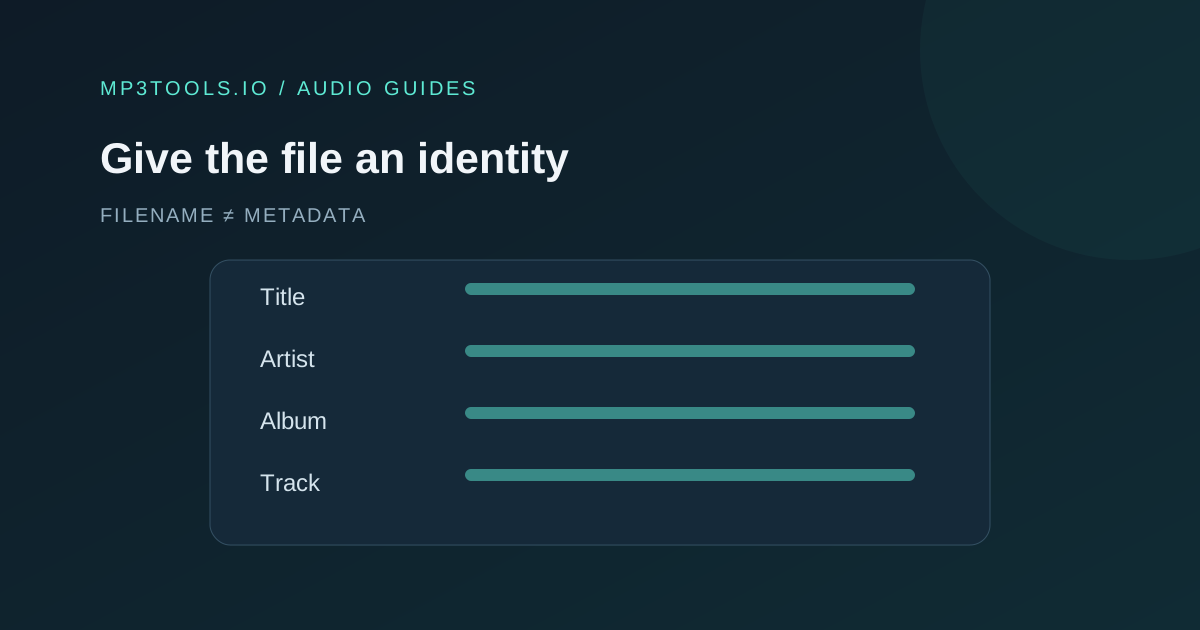
After exporting the complete file, check its actual size and play the downloaded copy. Confirm the beginning, ending and the representative passage you tested. Add text metadata after any final audio changes, since a later re-export may not retain those tags.
Keep the high-quality source regardless of which MP3 setting you choose. That makes the decision reversible: you can send a better copy later without asking a compressed file to recover information it no longer contains.
Sources & further reading
Tool steps checked against the current mp3tools.io browser tools. Platform guidance checked on 4 October 2026.