A good trim keeps the moment you wanted and removes the material around it. The difficult part is usually the boundary: a word that starts early, a drum hit that needs room, or an ending that feels abrupt. Here is a repeatable way to make a clean clip with the browser MP3 Cutter.
Choose boundaries by listening, leave room for the first sound and the final tail, and audition the downloaded export.
Decide what the clip needs to say
Write down the purpose of the clip before moving handles. A spoken answer needs enough context to make sense. A music preview needs the phrase that carries the idea. A sound effect may need an exact entrance. The right duration follows from that purpose rather than from a round number on the timer.
Listen to the source once and note rough start and end times. Include a little material on both sides while you work. If the target is a 30-second preview, first find a passage that works as a complete thought, then refine it to fit. Removing a setup sentence may make the remaining answer shorter but less useful.
Load the file and set the selection
- Open the MP3 Cutter and choose your source file.
- Wait for the waveform and duration to appear.
- Move the start and end handles, or enter times in the selection controls.
- Use the preview to hear the selected passage.
- Adjust the boundaries again after listening.
The tool decodes and edits audio in your browser. A filename alone does not guarantee that a format can be decoded on your device. If a source fails to open, try a current desktop browser or make a compatible source copy with an audio application you already use.
Save the original separately. The downloaded clip is a new output file, so use a name that describes its purpose. “interview-answer-clip” is more helpful than another “final” when you come back next week.
Use the waveform as a map
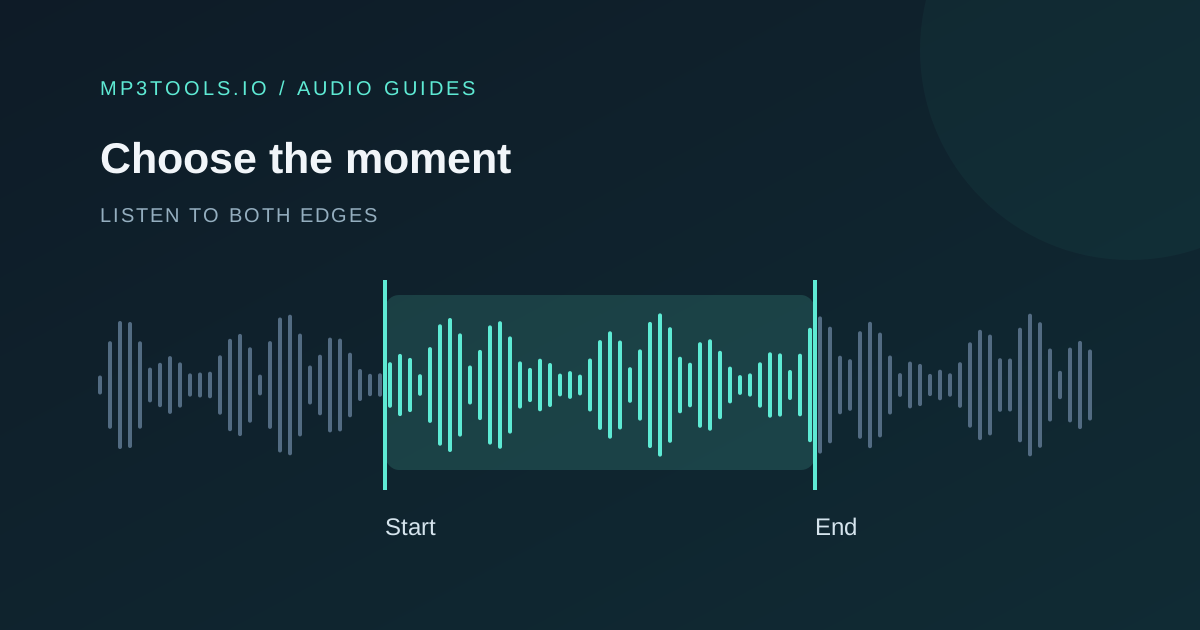
The waveform shows changes in amplitude over time. It helps you find a pause or a strong entrance, but it cannot tell you whether a sentence is complete. Listen across each edge: a quiet consonant or breath can start before the larger shape you notice on screen.
For speech, try placing the start just before the first word rather than on its visible peak. Leave a short natural pause after the last word. For music, listen for pickup notes and the decay of the final sound. A cut that looks neat can still interrupt a phrase.
If the selection feels late, move its start slightly earlier. If it drags, remove silence in small steps. Repeat at a comfortable listening level; turning everything up can hide an awkward entrance by making it seem more dramatic.
Add fades only when they help
The cutter includes fade-in and fade-out options. A fade can soften an abrupt boundary or make a preview feel intentional, but it also changes the beginning or ending you hear. Compare the same passage with the fade on and off before exporting.
A spoken clip may lose a quiet first syllable if it fades too slowly. A musical clip may benefit from a fade at its end, especially when the original passage continues into another section. Keep the fade tied to the sound rather than applying it to every file by habit.
For a precisely looping sound, use WAV and verify the loop in its destination. MP3 encoding may introduce timing padding or delay; the Audacity MP3 export documentation explains why MP3 is a less predictable choice for sample-accurate loops.
Sources & further reading
Tool steps checked against the current mp3tools.io browser tools. Platform guidance checked on 4 October 2026.