A quiet recording can be frustrating, but the largest boost is rarely the best fix. The useful goal is clearer listening while retaining a natural sound. Start by finding out whether the whole recording is quiet, only some words are quiet, or the playback system is simply turned down.
Use a modest boost, compare at a steady listening level, and remember that raising gain also raises recorded noise.
Check the recording before you change it
Play another familiar recording on the same device. If everything is quiet, adjust the playback volume first. If your file alone is quiet, listen for whether the level stays low throughout or swings between loud and quiet passages.
A consistently quiet voice is a different problem from an interview where one speaker is much quieter than another. Uniform gain can help the first case. It raises both speakers in the second case, so the louder one may become uncomfortable while the quieter one still needs attention.
Listen for noise as well as speech. Room hiss, hum and handling sounds are part of the recorded signal. Increasing the gain raises those sounds too; a volume control cannot separate them from the voice. Keep a copy of the original so you can compare and revise.
Know what the three controls do
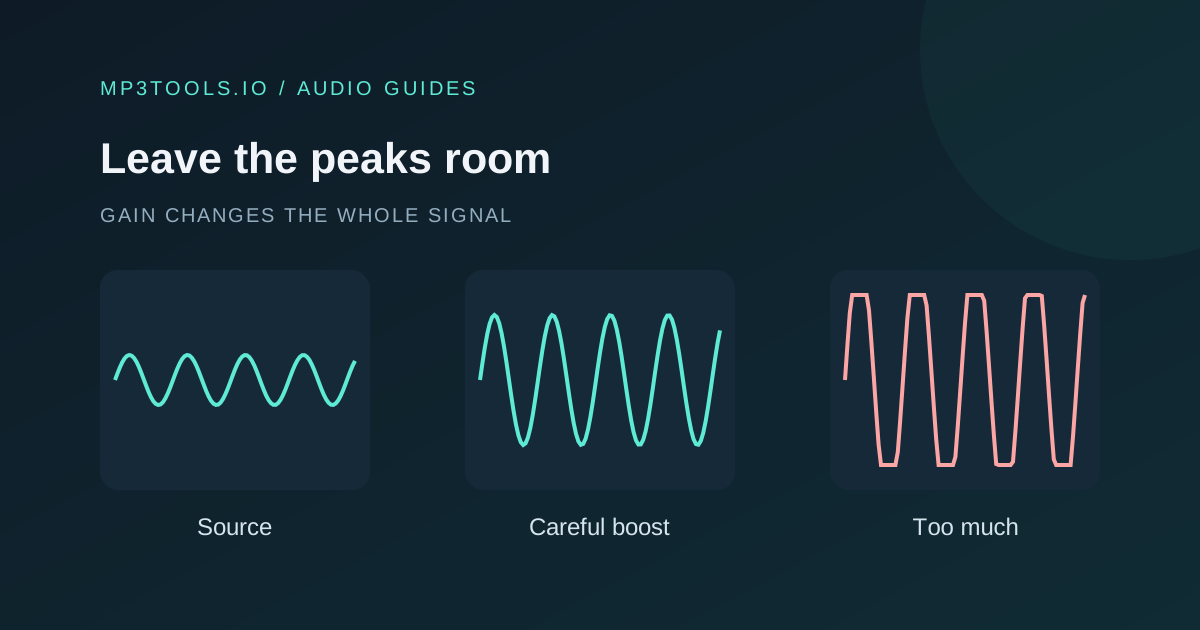
Gain multiplies the signal level. In the Volume Booster, the percentage is an amplitude multiplier: 100% is unity and 200% doubles amplitude. It is not a promise that perceived loudness will double.
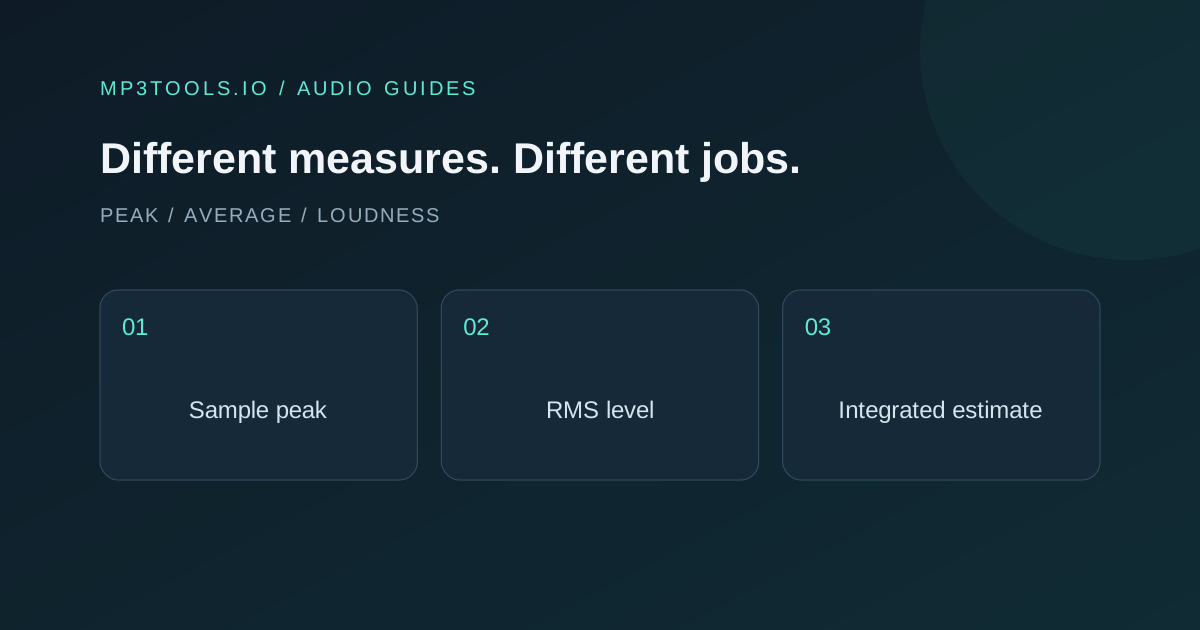
Peak normalization adjusts the recording based on its highest peak. That can bring a quiet file into a more useful range, but it does not make every word equally loud. One isolated loud bump can limit the available gain for the rest of the recording. Audacity’s normalization documentation describes the peak-based principle.
A soft limiter restrains high levels rather than allowing a simple hard cut at the output ceiling. It changes the signal, especially under strong boosts. Listen for flattened attacks or an unnatural voice instead of assuming that switching it on makes every setting suitable.
Make a restrained first pass
- Open the Volume Booster and choose the source.
- Start with the boost amount close to 100%.
- Leave peak normalization and the soft limiter enabled for the initial preview.
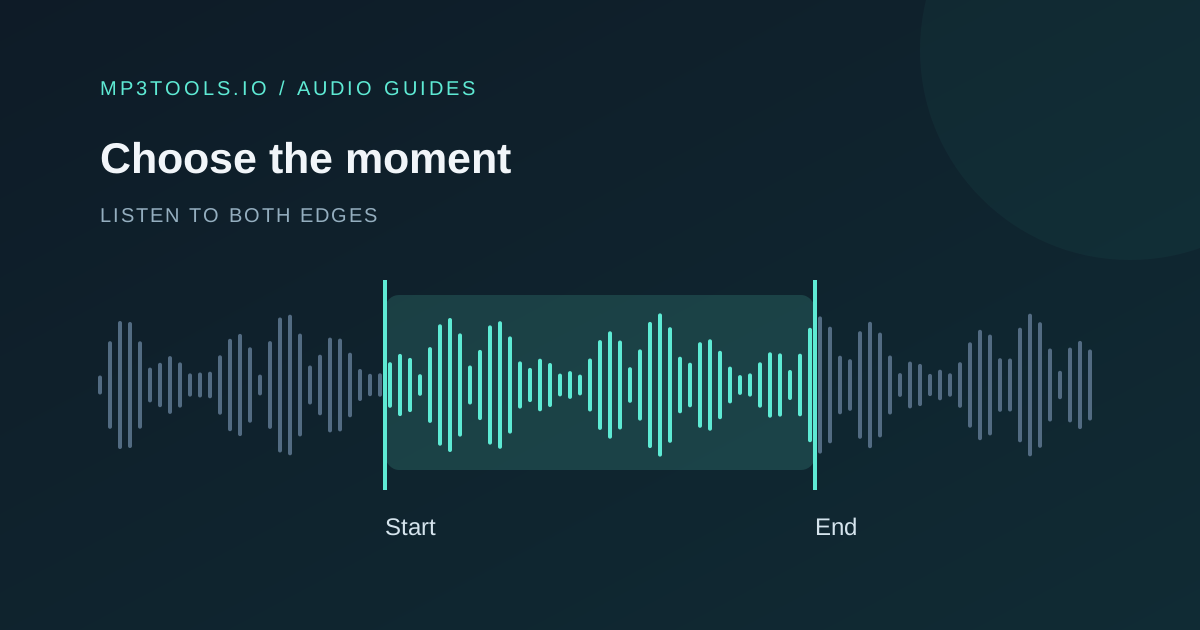
- Preview a quiet phrase and the loudest passage.
- Adjust the boost in small steps and compare again.
Normalization and boost interact: the normalization adjusts for the source peak, then the boost changes the resulting level. Starting with a large percentage can make the limiter work heavily even if the original file sounds quiet.
If you want to hear the effect of gain alone, compare with normalization disabled at a modest setting. Change one control at a time and return to the same passage. That is easier to judge than changing three controls and trying to remember the original sound.
Recognise when volume is not the answer
Harsh crackles on loud syllables, flattened peaks or gritty attacks can indicate clipping in the source. Turning that recording down can make it easier to listen to, but it does not reconstruct the missing peak shape. If possible, return to an earlier unprocessed recording.
Large differences between words may need phrase-level editing or a dynamic range processor in a fuller audio editor. The Audio Compressor on this site reduces encoded file size; it is not a dynamic range compressor. Its bitrate control will not level an uneven performance.
The Loudness Analyzer can help compare overall versions. Treat its readings as context for listening, and read the loudness guide for the difference between sample peak and perceived level.
Review the export, not just the preview
Export MP3 for a sharing copy or WAV if you intend another editing step. Play the downloaded result at a comfortable fixed volume and compare a quiet passage, a loud passage and a moment of silence with the source.
- Is speech easier to follow without becoming harsh?
- Has background noise become distracting?
- Do loud phrases retain a natural sound?
- Does the entire file stay comfortable, not only the first few seconds?
If the result fails those checks, reduce the boost or use a more suitable editing workflow. A recording is better when it is easier to hear for its intended audience. The percentage on the control is only a means to that outcome.
Sources & further reading
Tool steps checked against the current mp3tools.io browser tools. Platform guidance checked on 4 October 2026.