To reverse an MP3 or WAV, open Reverse Audio, choose a short file, wait for processing, compare Play original with Play reversed, then export and download a copy. Your audio stays on your device. This guide takes you through that workflow and a six-second example so you can check the direction, channels and final file rather than trusting a button label.
Reverse a separate copy, keep the original, and check the downloaded result. Choose WAV for another editing step or MP3 for a compact listening copy.
What playing backwards changes
Reversal changes the order of the audio samples: the end comes first and the beginning comes last. A sharp attack followed by a long decay becomes a build-up ending in a sharp finish. Words sound unfamiliar because their internal changes run in the opposite direction. Audacity’s Reverse documentation describes the same basic operation.
This is different from slowing a recording down or changing its pitch. Reverse Audio has no speed or pitch control. It reverses each decoded channel separately, retaining the decoded frame count and sample rate. Left stays left and right stays right; the channels are not exchanged. That does not promise a byte-identical export: browser decoding and the chosen encoder are separate steps.
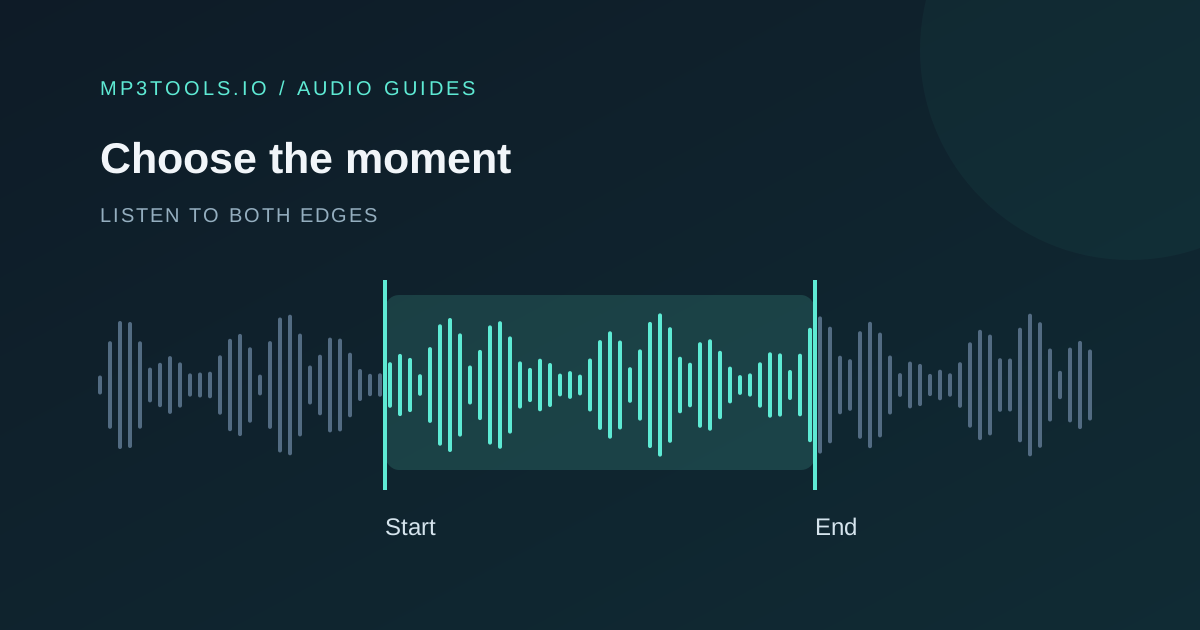
Use a recording you own or have permission to edit. A short sound effect, voice memo or musical ending is a useful starting point. Keep the source unchanged so you can compare versions and start again. For a longer recording, use MP3 Cutter first: this reverser processes the whole file, not a selected passage.
Load the file and compare both previews
Open Reverse Audio and select Upload audio to reverse, or drop one file into the upload area. MP3 and WAV are useful starting points; decoding other formats depends on your browser and device. There is no account step or audio upload to our server. Wait for Reversed audio ready. Compare both versions or export a copy. before using the preview controls.
- Select Play original to confirm that you chose the intended recording.
- Select Play reversed and compare its entrance and ending.
- Use Stop when you need to pause the comparison.
- Drag the timeline, or focus it and use the arrow keys, to check a particular moment.
Switching between the two preview buttons starts that version at the beginning. A timeline position is a playback position, not a trim selection. Check the displayed duration, channel count and decoded sample rate. The last figure describes the browser’s decoded buffer, not necessarily the original file’s rate: Web Audio decoding can resample to the audio context’s rate.
Check a six-second example
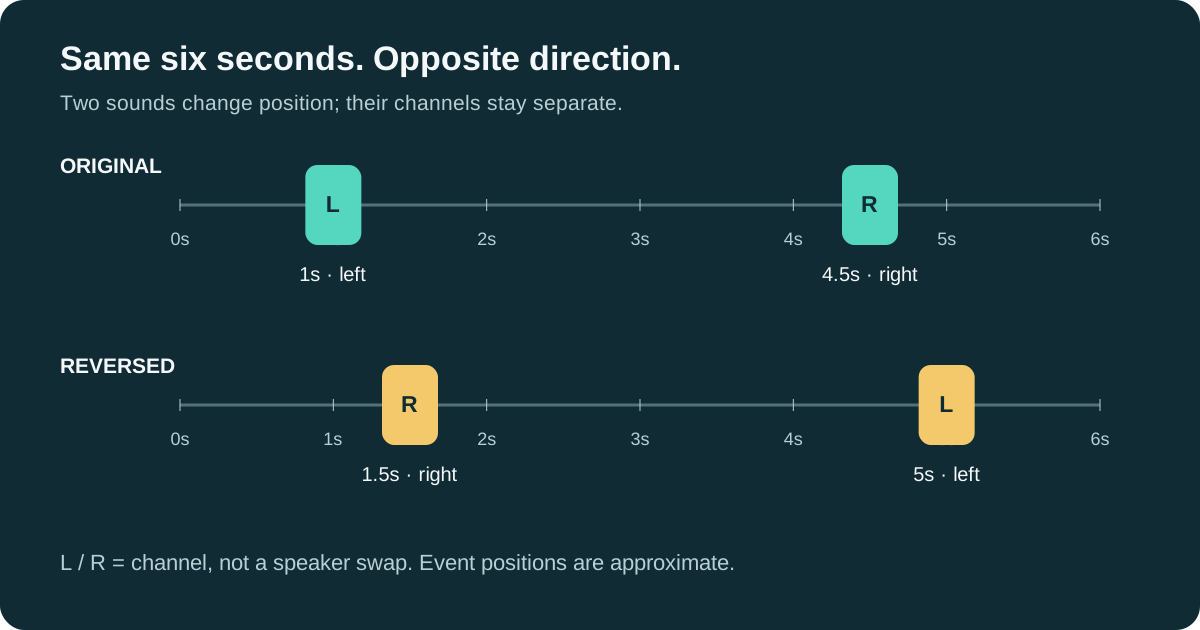
Imagine a six-second stereo clip with a short sound on the left at about one second and a different sound on the right at about four and a half seconds. After reversal, the later right-channel sound comes first, at about one and a half seconds. The earlier left-channel sound moves near five seconds. The clip is still about six seconds long.
For our reproducible check, we generated a six-second stereo WAV with two soft tone bursts at those positions, then exported the reversed WAV using the live tool. The exported channels matched the reversed decoded samples within 16-bit WAV rounding. This is a controlled sample check, not a claim that every codec or device behaves identically, or that a listening review has been completed.
You can make a simpler version with two different sounds in a short recording. Compare their order in each preview, then check the downloaded copy. With stereo material, confirm that a sound originally on the left still belongs to the left channel after reversal. The effect changes when it occurs, not which channel contains it.
Notice the shape of each sound as well as its position. A decay becomes a swell. If you need to place that swell before another event, export a separate WAV and arrange it in your editing workflow. The reverser does not add reverb, mix overlapping tracks or automatically align an effect with a beat.
Choose and download the right copy
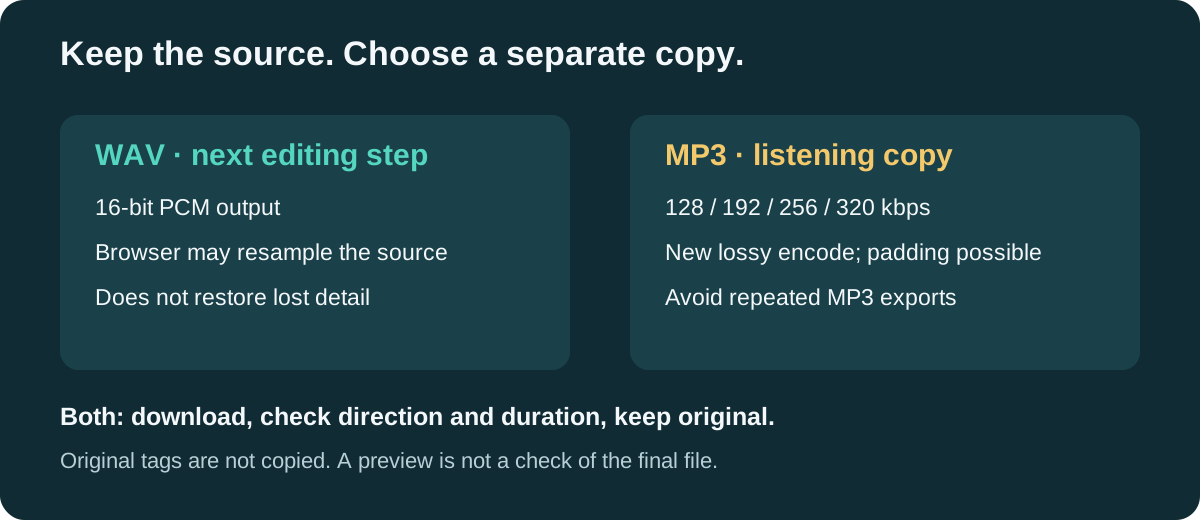
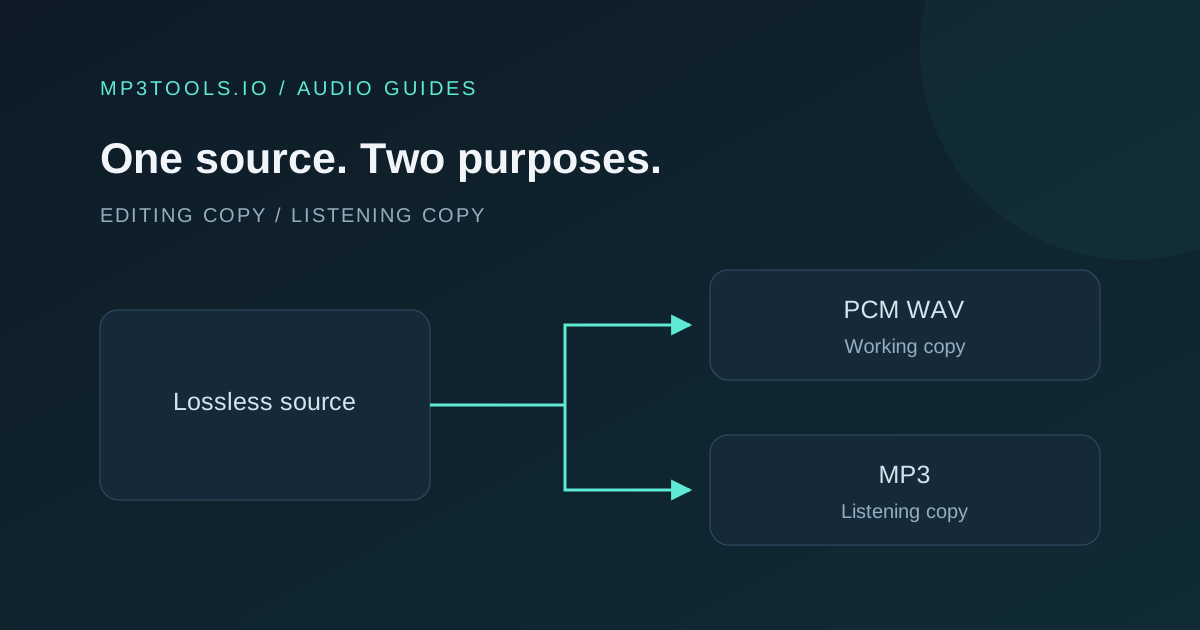
Under Reversed download, choose a Format. WAV produces 16-bit PCM and is a useful intermediate when another editor accepts it. Exporting an MP3 source as WAV does not restore discarded detail. Our MP3 versus WAV guide explains the distinction between an editing copy and a listening copy.
For MP3, choose 128, 192, 256 or 320 kbps. This is a new lossy encode, not a lossless rearrangement of the original MP3 file. A higher bitrate cannot recover information missing from the source. Avoid repeatedly exporting and re-importing MP3 during revisions; return to the original and use a suitable intermediate. Audacity’s MP3 export notes explain re-encoding loss and encoder delay.
Select Export reversed MP3 or Export reversed WAV, wait for the download link, then select Download reversed MP3/WAV. A source named two-sounds.wav downloads as two-sounds-reversed.wav on the WAV path. Original tags are not copied. MP3 padding can make a player report a slightly different duration, so check the downloaded file rather than assuming the preview proves the export.
Handle limits and check the finished file
The tool accepts mono or stereo audio. Its desktop limits are 25 decimal MB and three minutes; the mobile layout uses 10 MB and 90 seconds. Decoded source memory is capped at 64 MiB or 32 MiB respectively, and reversal needs another buffer. These are ceilings, not a guarantee that every file below them will work: compressed file size does not show how much memory decoding needs.
If processing fails, try a shorter MP3 or WAV, close other heavy tabs, or use another supported browser. If the browser cannot read duration metadata, the fallback accepts only files under 5 MB before checking decoded duration and memory. Cancel and clear discards an in-progress result; Clear file resets the workspace. Neither deletes your original.
Before using the result, open the actual download and review it at a comfortable volume. Check the first and last sound, intended direction, duration, channel placement and any abrupt boundary. Confirm its filename and destination requirements. Save it before closing the tab, and keep the original separately. For revisions, start from that source rather than building a chain of lossy copies.
Sources & further reading
- Audacity Manual: Reverse ↗
- MDN: decodeAudioData() and resampling ↗
- Audacity Manual: MP3 export options ↗
Tool steps checked against the current mp3tools.io browser tools. Platform guidance checked on 15 October 2026.